Jump to HeaderJump to Main ContentJump to Footer
Michigan State University
Office of the Controller
  • Students and Parents
  • Faculty and Staff
  • Fiscal Officers
  • Forms

Office of the Controller

  • Accounting
  • |
  • Cashiers
    • eCommerce at MSU
  • |
  • Financial Reporting
    • Financial Statements
  • |
  • Payroll
  • |
  • Student Accounts
    • Tuition Rates by Semester
    • Tuition And Fees Calculator
    • Net Price Calculator
    • Student Receivables
    • Sponsored Accounts
    • 1098-T FAQ
  • |
  • Tax Services
  • |
  • Travel
  • |
  • Receivables
    • Loans Receivable
    • Delinquent Receivables
    • Returned Checks and ACH Payments
  • |
  • Training
Office of the Controller
  • Accounting
  • Cashiers
  • Financial Reporting
  • Payroll
  • Student Accounts
  • Tax Services
  • Travel
  • Receivables
  • Training

< Accounting

< Cashiers

  • eCommerce at MSU

< Financial Reporting

  • Financial Statements

< Payroll

< Student Accounts

  • Tuition Rates by Semester
  • Tuition And Fees Calculator
  • Net Price Calculator
  • Student Receivables
  • Sponsored Accounts
  • 1098-T FAQ

< Tax Services

< Travel

< Receivables

  • Loans Receivable
  • Delinquent Receivables
  • Returned Checks and ACH Payments

< Training

  • Students and Parents
  • Faculty and Staff
  • Fiscal Officers
  • Forms
Controller > Payroll >

Employee Self Service (ESS) for Temp On-Call Time Entry Instruction Guide

Employee Self Service (ESS) for Temp On-Call Time Entry Instruction Guide

  • Log Into EBS Portal
  • Click on My Time & Payroll
  • Click on Time Entries & Statement
  • Calendar and Time Entry Screen will appear
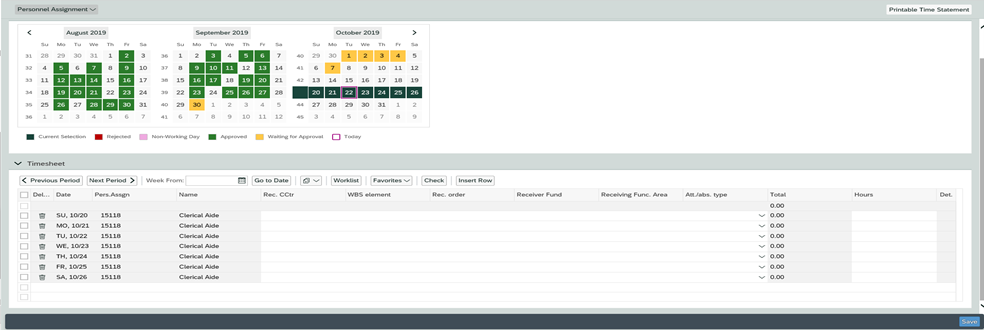
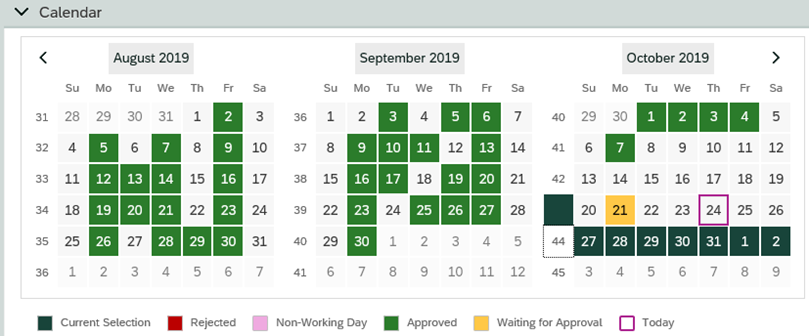
  • You can navigate to different weeks in the Timesheet by clicking on Previous/Next Period or by selecting a date from the calendar drop down and clicking on Go To Date

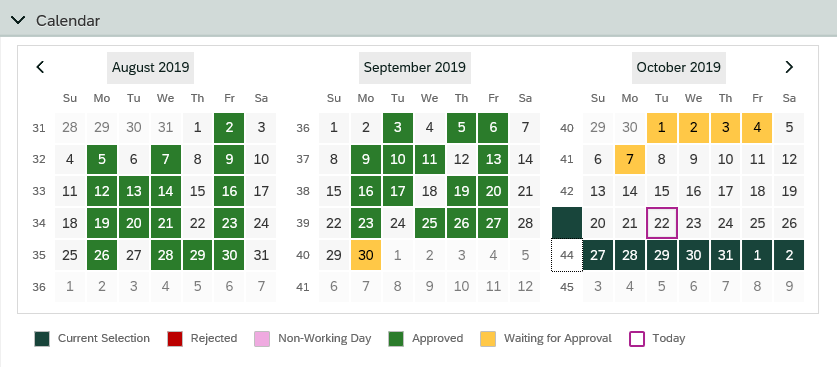
  • You can also navigate by clicking on week in the calendar. In this example, the week of October 27 has been selected. The week is highlighted in green and the current date is outlined with a purple box
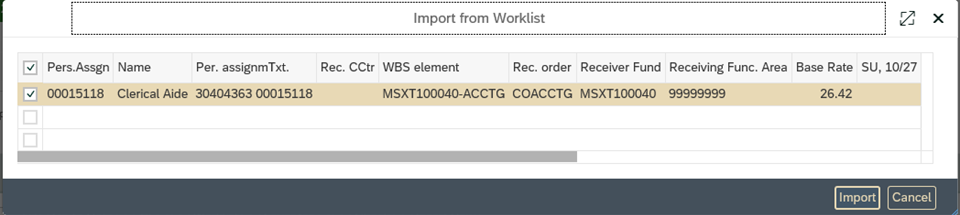
  • All time entries must be associated to a Fund (Account). To select a fund, click on Worklist

  • A popup up containing permissible accounts (funds) will appear. Click Import
    • If there is more than 1 permissible account, the employee will have to select the correct line. 1st account in list always comes checked
  • The Timesheet will populate with the Funding information
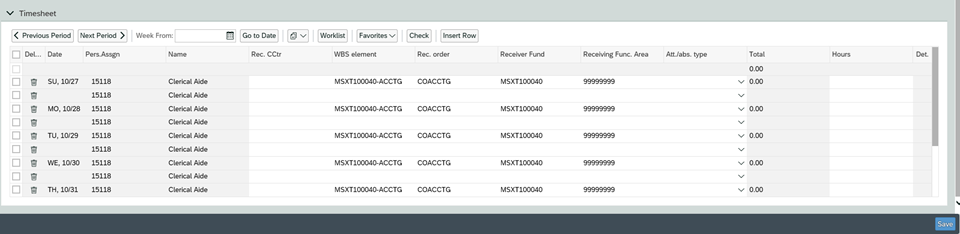
  • Select the Regular Hourly (2000) Attendance Type – Several appear in the dropdown, but only 2000 is valid
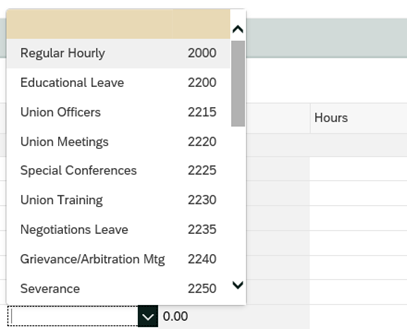
  • Enter Hours (must be reported to the 10th of the hour)

  • Entries can be checked for validation (not necessary)

  • A comment can be entered into the details box that can be viewed by the time approver (example Help Desk). The details also display the funding information, date, and hours for review. Click the icon in the Details Column.

  • Click OK when finished entering comment and/or reviewing details.
  • Comments are NOT necessary to save time entry
  • When Time Entries are complete, Click SAVE
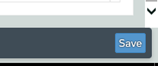
  • Save button is located in the bottom Right Corner of the Timesheet
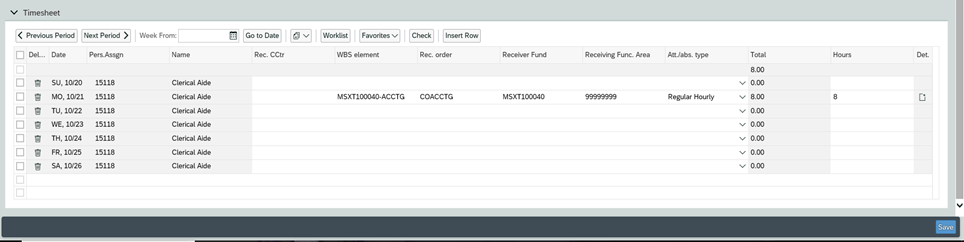
  • Entries will appear yellow in the calendar view indicating Awaiting Approval
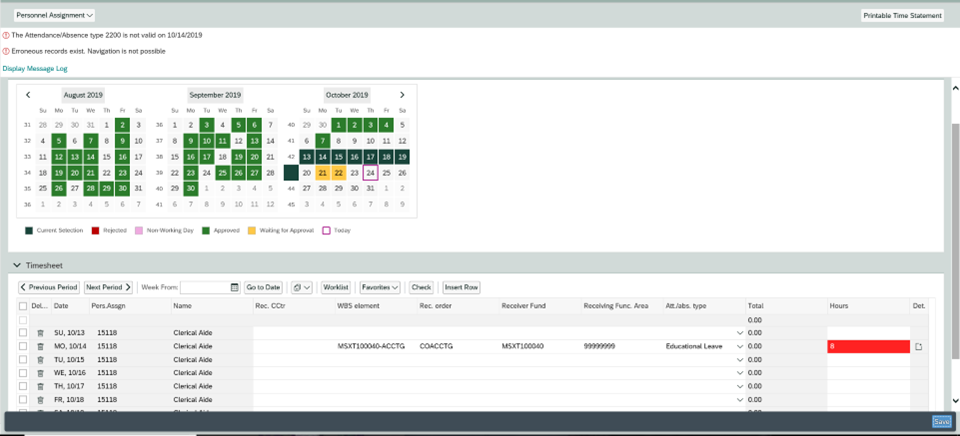
  • Common Error 1: Employee did not import Funding (Account) Information from Worklist
  • Common Error 2: Employee selected the wrong Att/abs. Type
Resources

  • A to Z Index
  • Find People
  • Maps
  • Email
  • Student Information System (SIS)
  • D2L
  • Libraries
  • Tech Support
  • MSU Misconduct Hotline
  • Social Media Directory
  • Events Calendar
  • For Media

Health and Safety

  • MSU Police and Public Safety
  • Olin Health Center
  • Counseling & Psychiatric Services (CAPS)
  • University Health and Wellbeing
  • MSU Health Care
  • Civil Rights and Title IX
  • Our Commitment
  • Center for Survivors
  • Security & Fire Safety Report
  • University Policy on Relationship Violence and Sexual Misconduct
  • Notice of Non-Discrimination, Anti-Harassment and Non-Retaliation
  • Health Care Non-Discrimination Notice

Support Services

  • Disability Resources
  • Supportive Services
  • Learning Resources

Working at MSU

  • Human Resources
  • EBS Login
  • Job Postings
  • Employee Assistance Program

Reports

  • CARES Act Funding
  • Student Achievement and Outcomes

Contact us

(517) 355-1855

Address

Michigan State University 426 Auditorium Road East Lansing, MI 48824

Releases and Statements

Follow Us

  • Visit our Facebook page
  • Visit our page on X
  • Visit our Instagram page
  • Visit our LinkedIn page
  • Visit our YouTube page

If you're having accessibility issues, please let us know.

Know MoreTransparency Reporting: Budget & Salary/Compensation
  • Contact Information|
  • Site Map|
  • Privacy Statement|
  • Site Accessibility|
  • Call MSU: (517) 355-1855|
  • Visit: msu.edu|
  • Notice of Nondiscrimination|

SPARTANS WILL|© Michigan State University|

